interleaved-2-of-5 Barcodes erzeugen
Nahtlose Integration mit Crystal Reports, MS Excel und MS Access


interleaved-2-of-5 Barcode in einer MS Excel-Tabelle erzeugen
1. Vertrauenswürdige Makroeinstellungen initialisieren
For Excel 2007 / 2010 / 2013 / 2016 / 2019 / 2021 / 2024 / 365: Click Office Menu File options → Trust Center → Trust Center Settings → Macro Settings, select "Enable all macros".
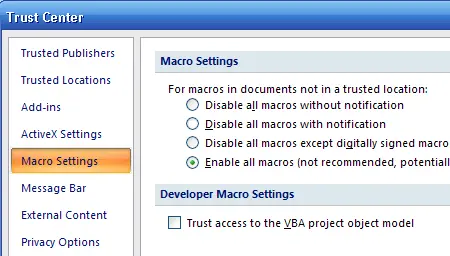
Legacy Office (2000/2003): Navigate via Tools → Macro → Security, configure to Low.
2. Visual-Basic-Fenster starten
Press ALT + F11 continuously to call up the integrated VBA Editor dashboard pane.
3. Bibliotheksreferenz-Verbindungen herstellen
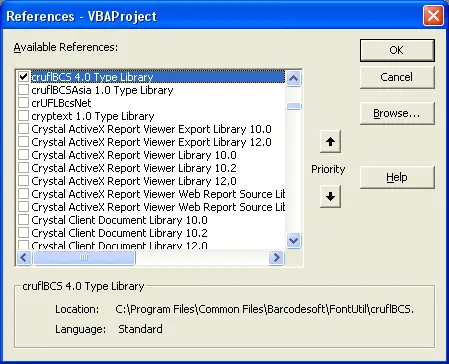
Within the editor, click Tools → References. In the browse lookup prompt path window, point directory target path location directly towards cruflbcs.dll module file assets (typically positioned inside C:\Program Files (x86)\Common Files\Barcodesoft\Fontutil directory folders). Ensure checkmark selection for crUFLBcs 5.0 Type Library is confirmed.
4. Import Module Automation Macros
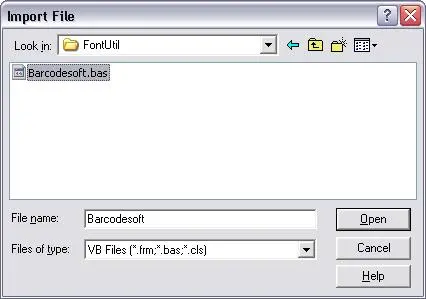
Press Ctrl + M to open the file import window context panel. Choose barcodesoft.bas file layout components from the utilities pathway mentioned above. If missing, retrieve package sources over archive zip links at cruflbcs.zip.
5. Implement Column Formula Configurations
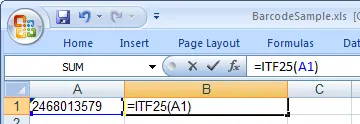
Close the Visual Basic layout editor to return focus back to spreadsheets workspace grid panels. Execute processing expressions inside desired workbook rows via standard cells referencing syntax parameters:
Close Visual Basic editor and go back to your spreadsheet. Now, you can use the following macros to encode data: interleaved-2-of-5 . When you have lots of data to process, you can just copy and paste the macro to the whole column and all data will be encoded immediately.
6. Set interleaved-2-of-5 Barcode Font Style Properties
Right-click the targeting output reference cell field (e.g. B1), choosing "Format Cells" properties. Under Font settings tabs layout mapping options select typeface identifier name tags tracking UpcEanM. Ensure the font style is set to Regular with Underline set to None.

Click OK and you should be able to see interleaved-2-of-5 barcode in your Excel spreadsheet now.