Navigation
code-93 Barcode

Generate code-93 Barcodes
Implement seamlessly across Crystal Reports, MS Excel, and MS Access


Overview
Anyone who needs to generate Code93 barcode need look no further. Barcodesoft Code93 software is exactly what you need.
Code 93 barcode symbology was designed to be an enhancement of code 39. Code93 encodes more characters and has higher data security than Code39. Code 93 is also known as USS-93.
Code 93 is designed to encode full ASCII character set by using combination of two characters to represent one.
Code 93 symbology requires a start character, two check digits appending your data and a stop character.
It's a smart and simple solution to use Barcodesoft Code93 barcode software for generating Code93 bar codes.
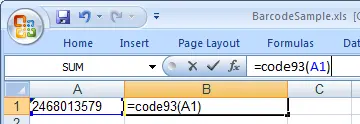
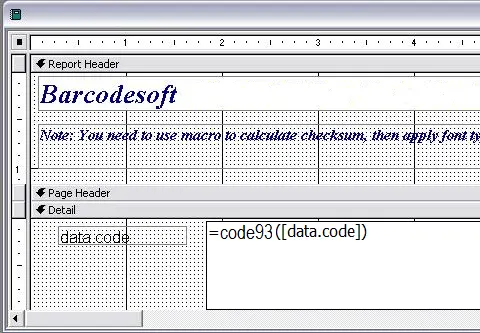
If you download Barcodesoft Code93 font to print bar code, please use our Encoder to calculate checksum for you. You can also find source code in VBA and C language of code93 checksum calculation.
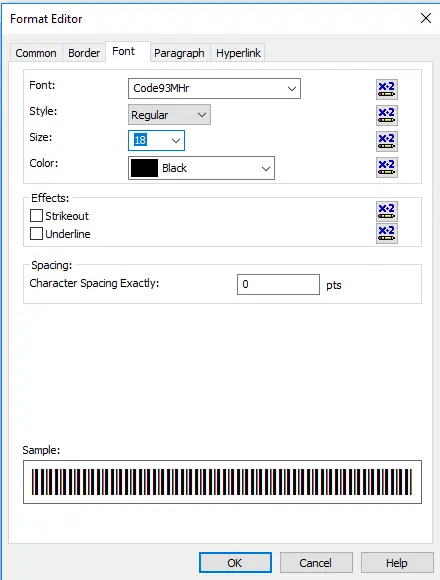
There are 14 code93 barcode fonts contained in the package as listed below, marked by different trailing indicators. Barcodesoft code93 barcode fonts vary in aspect ratios. Those code93 barcode fonts with "Hr" in name have human readable text underneath Code93 barcode.
Barcodesoft Code93 software Demo is fully functional with the "Demo" watermark.
Barcodesoft code93 fonts are available in true type, PostScript and PCL formats and can be embedded into Adobe PDF files.
Here is the list of Barcodesoft code 93 Barcode Fonts
Code-93 barcode Extended font mapping table
| Aspect Ratio | With Human Readable | Without Human Readable |
|---|---|---|
| XXS | code93XXSHr | code93XXS |
| XS | code93XSHr | code93XS |
| S | code93SHr | code93S |
| M | code93MHr | code93M |
| L | code93LHr | code93L |
| XL | code93XLHr | code93XL |
| XXL | code93XXLHr | code93XXL |
Barcodesoft code-93 Barcode Fonts Pricing
| License Type | Single | 5-User | 10-User | Site | Corporate | Dev | 5-Dev | 10-Dev | Unlimited |
|---|---|---|---|---|---|---|---|---|---|
| Price | CAD159 | CAD299 | CAD399 | CAD599 | CAD799 | CAD999 | CAD1199 | CAD1399 | CAD1999 |