Generate code39 Barcodes
Implement seamlessly across Crystal Reports, MS Excel, and MS Access


Generate code39 Barcode in MS Access Database
1. Adjust Database Security Properties
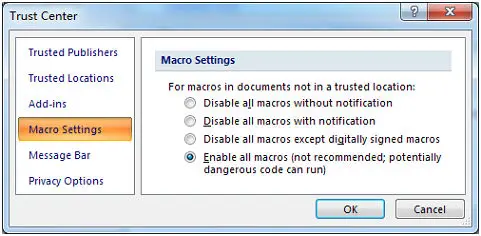
Modern Access Versions: Access Options Menu panel → Trust Center workspace options setup layout → Macro Settings → Choose "Enable all macros".
2. Run Visual Basic Engine Window
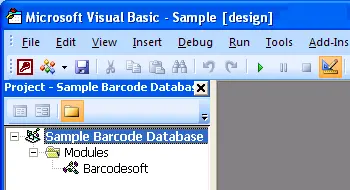
Launch the VB development application layout environment immediately by applying keyboard hotkeys combination triggers: ALT + F11.
3. Reference Type Library Extensions
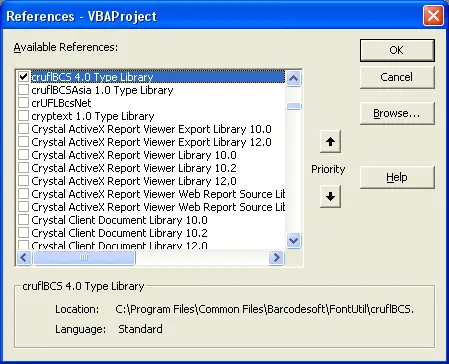
Open Tools → References options interface. Click Browse targeting library file matching path variables location to activate cruflbcs.dll dependencies tracking elements. Pick the select block next to crUFLBcs 5.0 Type Library, then finalize step saving actions.
4. Append Module File Functions Library
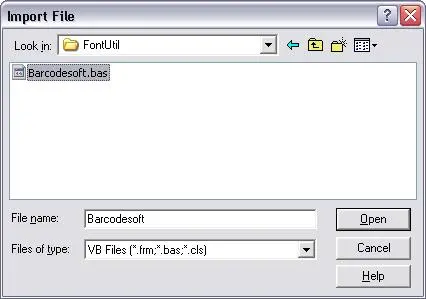
Press Ctrl + M to append script structures data using standard template files barcodesoft.bas components layout definitions module framework package directly.
5. Implement Report Macro Expressions
Exit the VBA developer windows, return safely back onto the database designer environment, and switch reports workspace views towards standard Design View layout structures. Type expression formatting values precisely into targeting object control sources textboxes fields:
Replace 'tableName' with your database table name and 'fieldName' with your code field name.
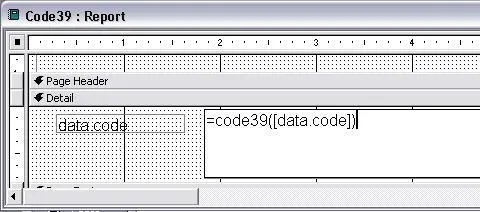
6. Finalize Typography System Configurations
Right-click target reporting control text container objects fields box areas picking layout Properties list context menus options mapping block. Alter control styling parameters to handle text display rendering behavior utilizing font type name family records matching Code39mHr typeface systems.
