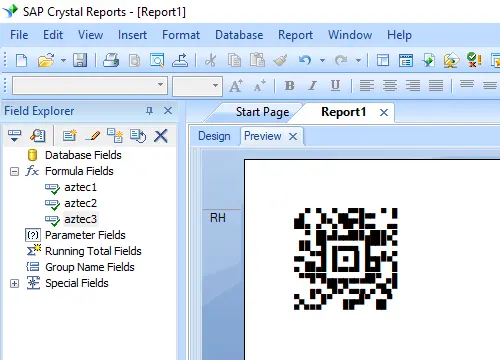
Generate aztec-code Barcodes
Implement seamlessly across Crystal Reports, MS Excel, and MS Access


Generate aztec-code Barcode in Crystal Reports
SAP Crystal Reports 2008 / 2011 / 2013 / 2016 are 32-bit.
SAP Crystal Reports 2020 / 2025 are 64-bit.
1.1 If your SAP Crystal Reports is 64-bit, please register 64-bit cruflbcs_x64.dll as instructed below.
Right click command prompt and run command prompt as administrator.
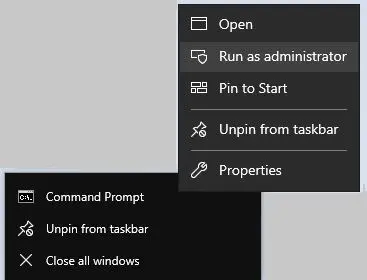
To register 64-bit DLL, please type in the following commands
                cd "C:\Program Files\Common Files\Barcodesoft\FontUtil"

                %systemroot%\System32\regsvr32.exe cruflbcs_x64.dll
1.2 If your SAP Crystal Reports is 32-bit, please register 32-bit cruflbcs.dll as instructed below.
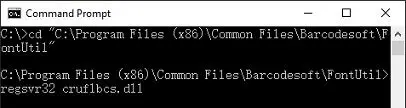
Type in the following commands to register 32-bit cruflbcs.dll
                cd "C:\Program Files (x86)\Common Files\Barcodesoft\FontUtil"

                regsvr32.exe cruflbcs.dll
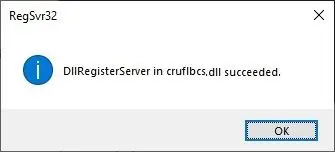
If you see the following Window pop up, your registration was successful.
2. Locate the UFL Function.
Navigate through the hierarchy: Functions List ⇒ Additional Functions ⇒ COM and .NET UFLs (u212com.dll) ⇒ Visual Basic UFLs. Double-click on the BCSLinearCode39Ext function.

3. Create a New Formula Field
Open your Crystal Report. Right-click Formula Fields and choose "New..." from the context menu. Set the name to "ExtCode39MHr", then click "Use Editor".

4. Use database field as parameter for aztec-code formula
type in the database field as parameter for aztec-code formula. And click "Save" button to save aztec-code formula field.
The max formula field string length of Crystal Reports is 254. Therefore, we will have to create multiple formula fields to split the Aztec Code in different parts.
As for how many formula fields are needed, please use thie formula to find out: BCSAztecFormulaNoForCR({Test.Data})
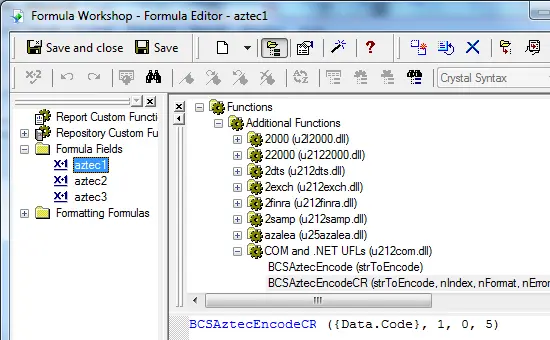
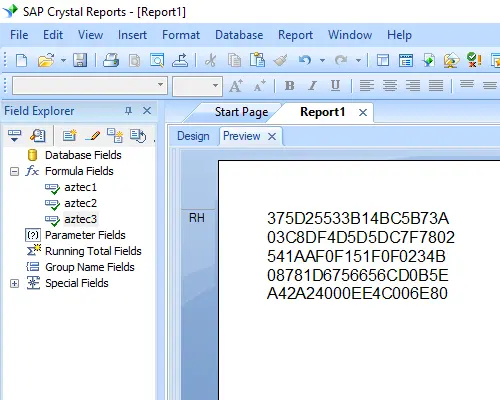
5. Insert a text object in your report. Drag and drop all Aztec Code formula fields into the text object in sequence. You will see some strange characters in your report. Don't worry! You have NOT applied BcsAztec barcode font yet.
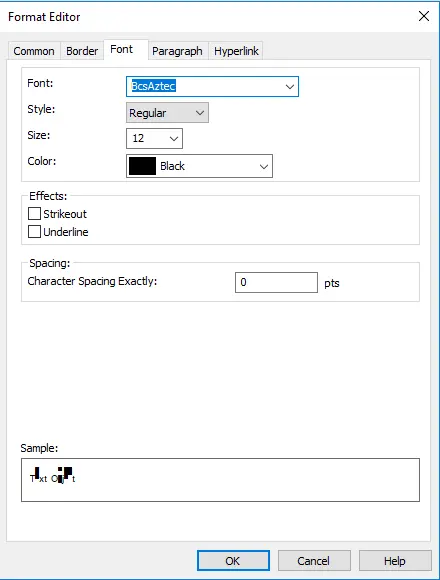
6. Apply font typeface BcsAztec.
Right click aztec-code formula field and choose "Format Object" from context menu. Then choose "BcsAztec" as font.
7. aztec-code barcode is created in your Crystal Reports.
Click OK button. You will get aztec-code barcode in your report.