Navigation
aztec-code Barcode
Generate aztec-code Barcodes
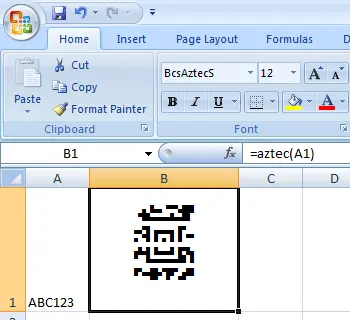
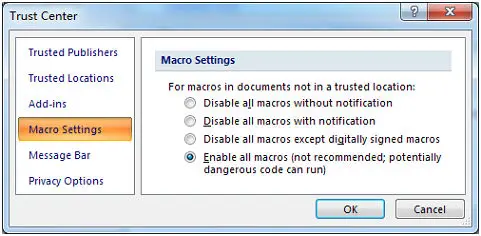
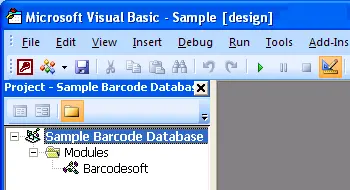
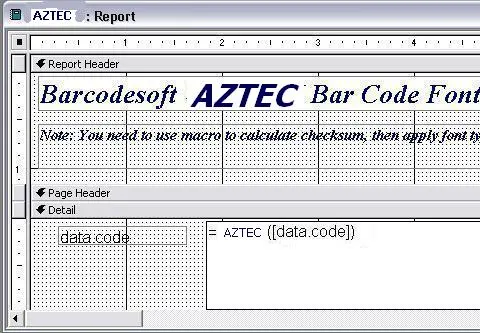
Implement seamlessly across Crystal Reports, MS Excel, and MS Access


Overview
Anyone who wants to generate Aztec Code needs look no further. The answer is Barcodesoft Aztec Code software.
Aztec-Code is a high-capacity 2D matrix barcode symbology. It can encode ASCII and extended ASCII characters.
ISO/IEC 24778:2008 standard defines Aztec-Code.
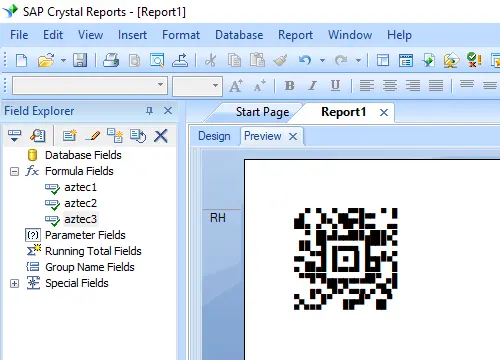
Its unique centered finder pattern and module placement algorithm makes Aztec-Code looks like a maelstrom.
Aztec-code size ranges between 15 X 15 modules and 151 x 151 modules. Each module is a square of black or white.
When using the Full Range Mode of 151 x 151 modules and with 25% error correction, Aztec-Code can encode up to 3000 characters or 3750 numbers.
Barcodesoft Aztec-code software allows the user to select the pre-defined Aztec-code size and error-correction level.
There are 36 pre-defined Aztec-Code sizes available to choose from, as shown below. There are also 19 error correction levels to choose from. Level 5 (23%) is the default error correction level.
The higher the error correction level is, the larger the size of Aztec-code, and the less chance for decoding error.
Code-39 barcode Extended font mapping table
| Index | Format | Index | Error Correction Level |
|---|---|---|---|
| 1 | 15 X 15 compact | 1 | 5% |
| 2 | 19 X 19 | 2 | 10% |
| 3 | 19 X 19 compact | 3 | 15% |
| 4 | 23 X 23 | 4 | 20% |
| 5 | 23 X 23 compact | 5 (default value) | 23% |
| 6 | 27 X 27 | 6 | 25% |
| 7 | 27 X 27 compact | 7 | 30% |
| 8 | 31 X 31 | 8 | 35% |
| 9 | 37 X 37 | 9 | 40% |
| 10 | 41 X 41 | 10 | 45% |
| 11 | 45 X 45 | 11 | 50% |
| 12 | 49 X 49 | 12 | 55% |
| 13 | 53 X 53 | 13 | 60% |
| 14 | 57 X 57 | 14 | 65% |
| 15 | 61 X 61 | 15 | 70% |
| 16 | 67 X 67 | 16 | 75% |
| 17 | 71 X 71 | 17 | 80% |
| 18 | 75 X 75 | 18 | 85% |
| 19 | 79 X 79 | 19 | 90% |
| 20 | 83 X 83 | ||
| 21 | 87 X 87 | ||
| 22 | 91 X 91 | ||
| 23 | 95 X 95 | ||
| 24 | 101 X 101 | ||
| 25 | 105 X 105 | ||
| 26 | 109 X 109 | ||
| 27 | 113 X 113 | ||
| 28 | 117 X 117 | ||
| 29 | 121 X 121 | ||
| 30 | 125 X 125 | ||
| 31 | 131 X 131 | ||
| 32 | 135 X 135 | ||
| 33 | 139 X 139 | ||
| 34 | 143 X 143 | ||
| 35 | 147 X 147 | ||
| 36 | 151 X 151 |
Barcodesoft aztec-code Barcode Fonts Pricing
| License Type | Single | 5-User | 10-User | Site | Corporate | Dev | 5-Dev | 10-Dev | Unlimited |
|---|---|---|---|---|---|---|---|---|---|
| Price | CAD299 | CAD399 | CAD599 | CAD799 | CAD999 | CAD1199 | CAD1399 | CAD1999 | CAD2999 |