Generate Code 128 barcodes


Integrate Code128 Barcode With MS Access
1. Right click command prompt and run command prompt as administrator.
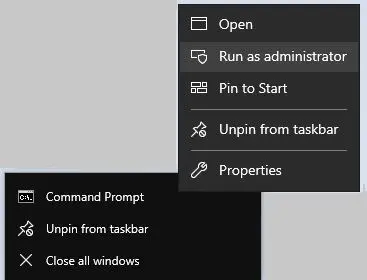
To register 64-bit DLL, please type in the following commands
                            cd "C:\Program Files\Common Files\Barcodesoft\FontUtil"
                            %systemroot%\System32\regsvr32.exe cruflbcs_x64.dll
Type in the following commands to register 32-bit cruflbcs.dll
                            cd "C:\Program Files (x86)\Common Files\Barcodesoft\FontUtil"
                            regsvr32.exe cruflbcs.dll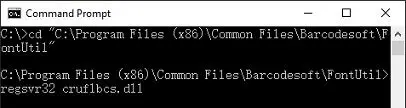
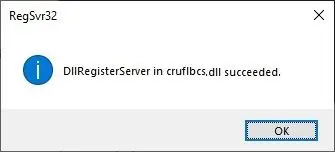
If you see the following Window pop up, your registration was successful.
2. Start Microsoft® Access®.
If you are using Access 2000 or 2003, click menu ===> Tools ==> Macro ===> Security. Choose Low security level.
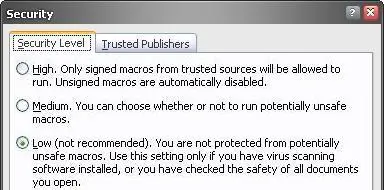
If you are using Access 2010 / 2013 / 2016 / 2019 / 2021 / 2024, click the Microsoft Office Button.


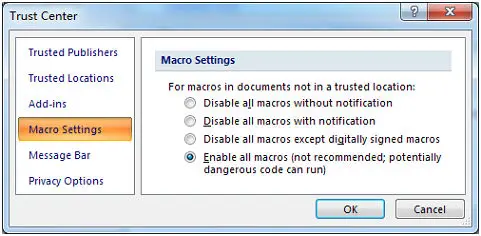
Then click Access Options, choose Trust Center. In the Macro Settings category, under Macro Settings, choose "Enable all macros" as shown below.
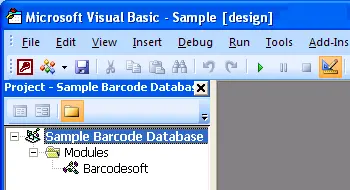
3. Press ALT + F11 to open Microsoft® Visual Basic editor.
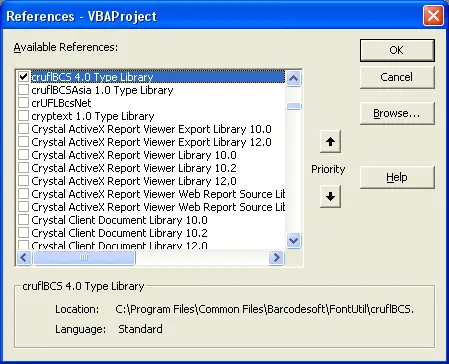
4. From Visual Basic editor, choose menu Tools ===> References. It will popup a dialog. Click Browse button and choose cruflbcs.dll from your working folder. Usually it's under C:\Program File (x86)\CommonFiles\Barcodesoft\Fontutil folder. Click the checkbox beside crUFLBcs 4.0 Type Library as shown below. Then click OK button.
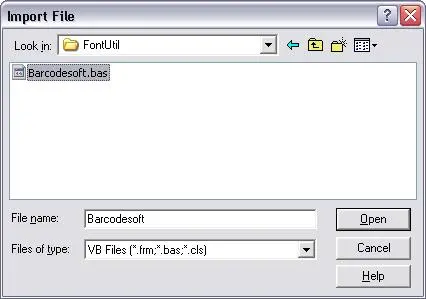
5. Press Ctrl+M, it will popup a dialog, choose barcodesoft.bas under C:\Program File (x86)\CommonFiles\Barcodesoft\Fontutil folder. Then click "Open".
If you don't find barcodesoft.bas, please download it from code128.
6. Close Visual Basic and go back to your Access database. Now, create a report in Design view and type in one of the following macros in the field where you want to show code128 barcode before apply font typeface, such as Code128mHr:
=Code128A([data.code])
=Code128B([data.code])
=Code128C([data.code])
Please notice that 'data' is the Table name, 'code' is the Field name.